 Camipack
Guide · 8 steps · 2 min
Offline maps
Download a trip's map once, and it keeps working with no internet at all — streets, labels, your pins and walking routes. The map covers everything the trip pins down, with margin around it, and is stored entirely on your phone. A city is roughly 20–40 MB.
It also shows where you are and points the way to your next stop, with no signal of any kind. Satellite positioning is receive-only, so your phone still knows its position in Airplane Mode or abroad with the data switched off — it just takes a little longer to find it the first time.
Open in Camipack › Download on the App Store
- 1
Open the trip and tap the ⋯ button in the top-right corner.
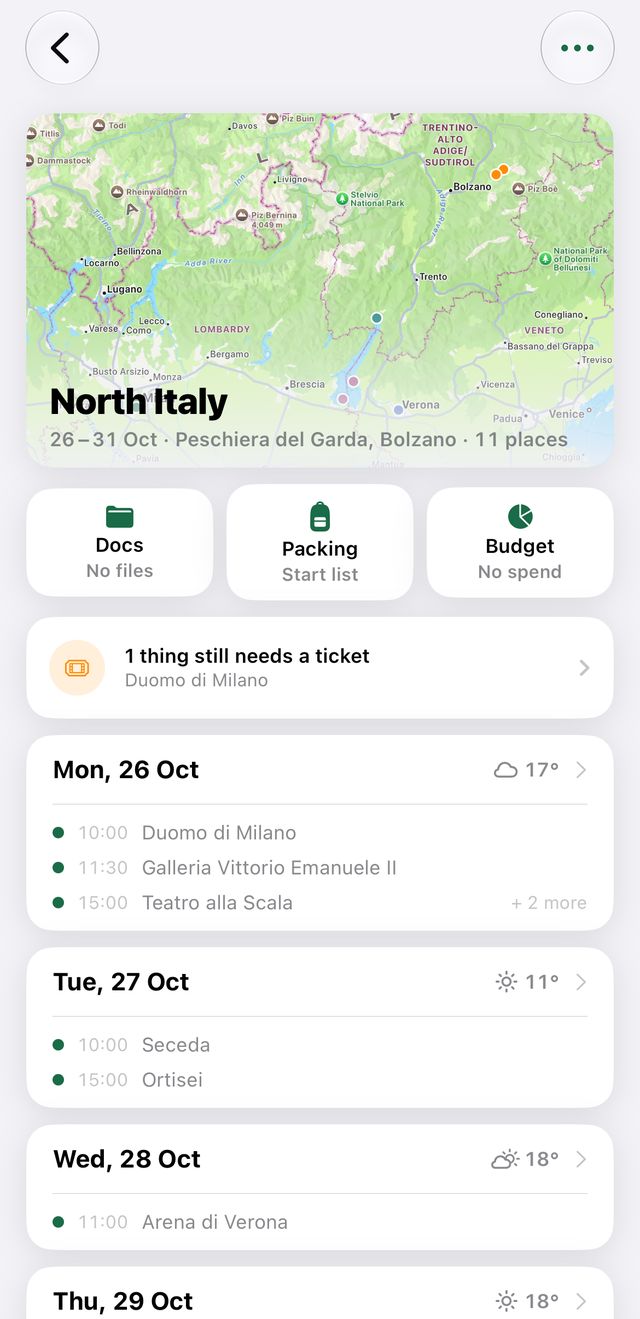
- 2
Tap “Offline Map…”, then “Download Offline Map” — best on Wi-Fi.
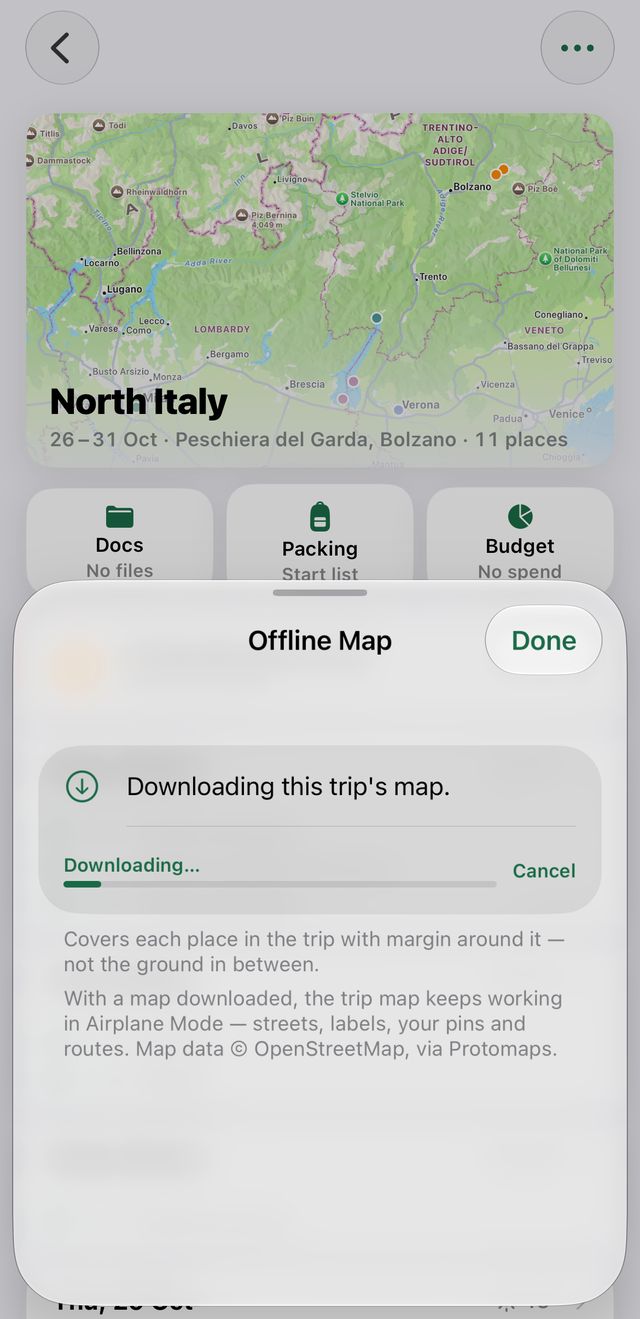
- 3
To test it: turn on Airplane Mode, then open the trip and tap the map. The offline map opens automatically.
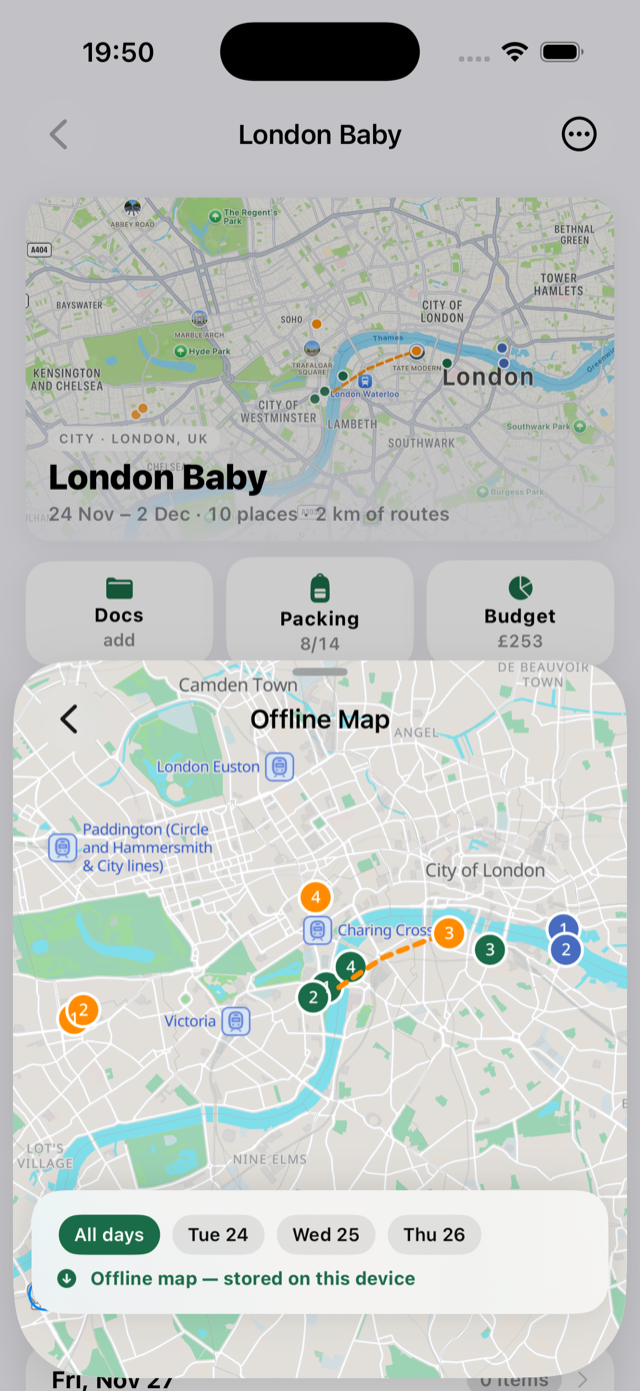
- 4
You can also open it any time from the same sheet — “View Offline Map”.
- 5
Changed the plan? “Update Map” re-downloads around the new places. “Remove Download” frees the space.
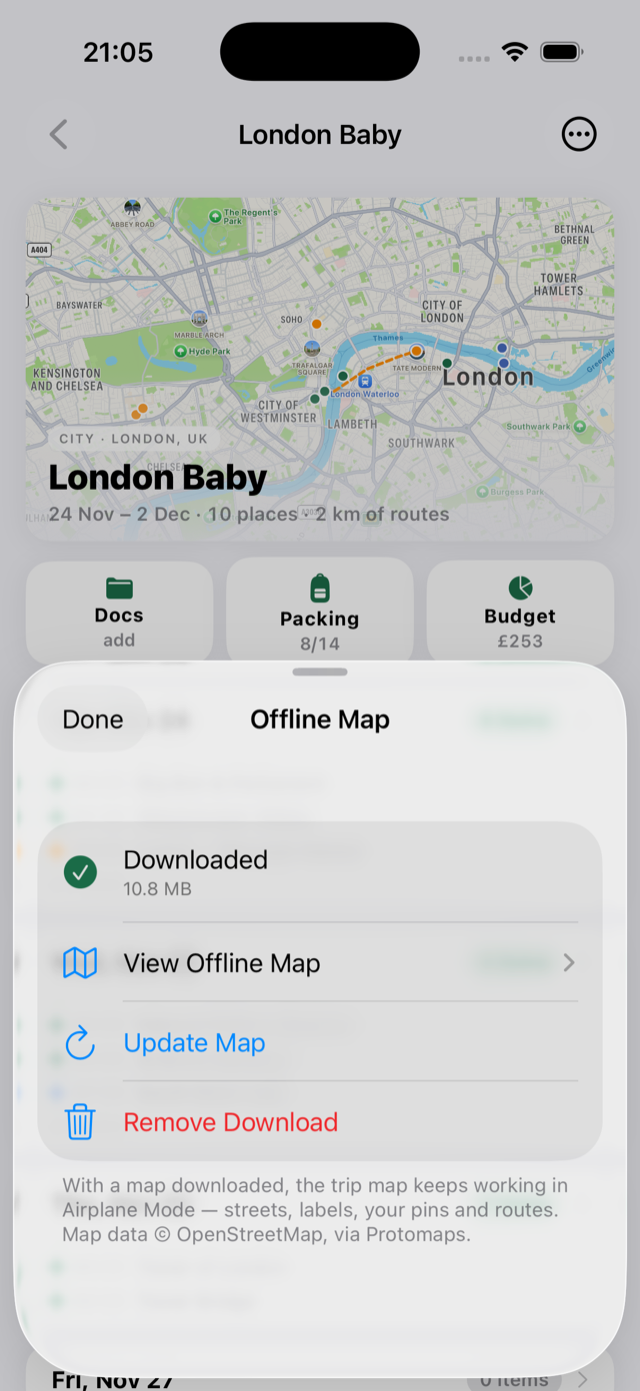
- 6
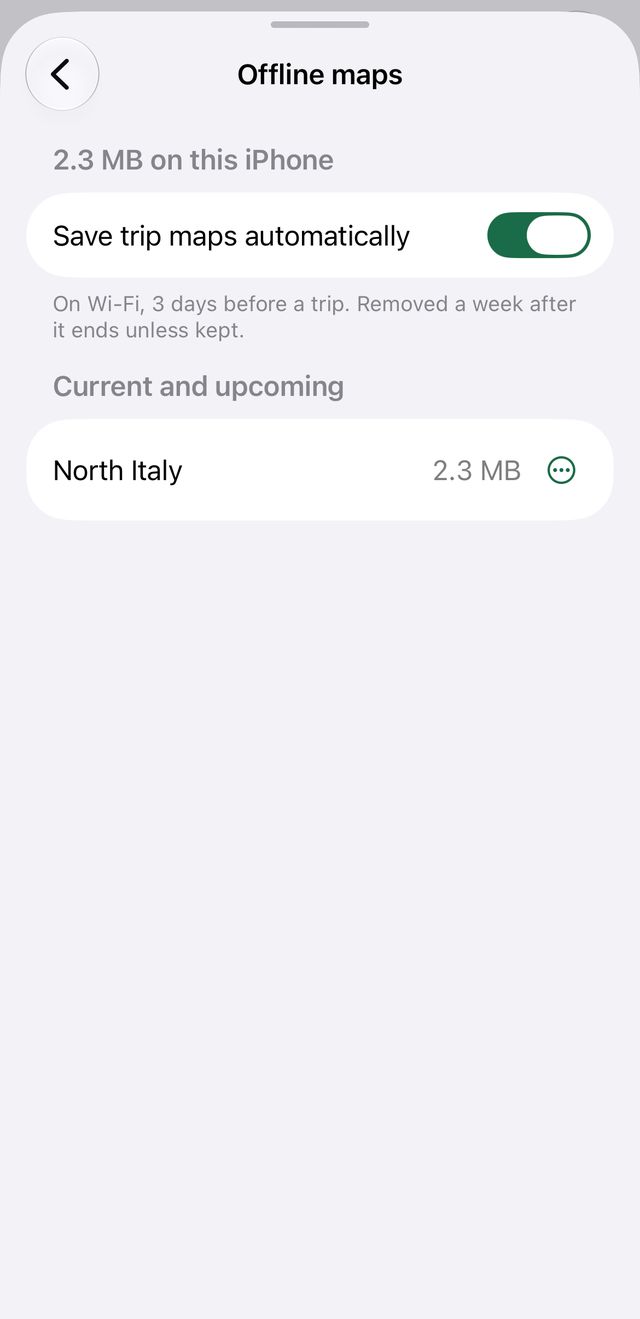
Settings › Offline maps lists every map. It can save them before each trip by itself, and removes them a week after the trip unless you keep them.
- 7
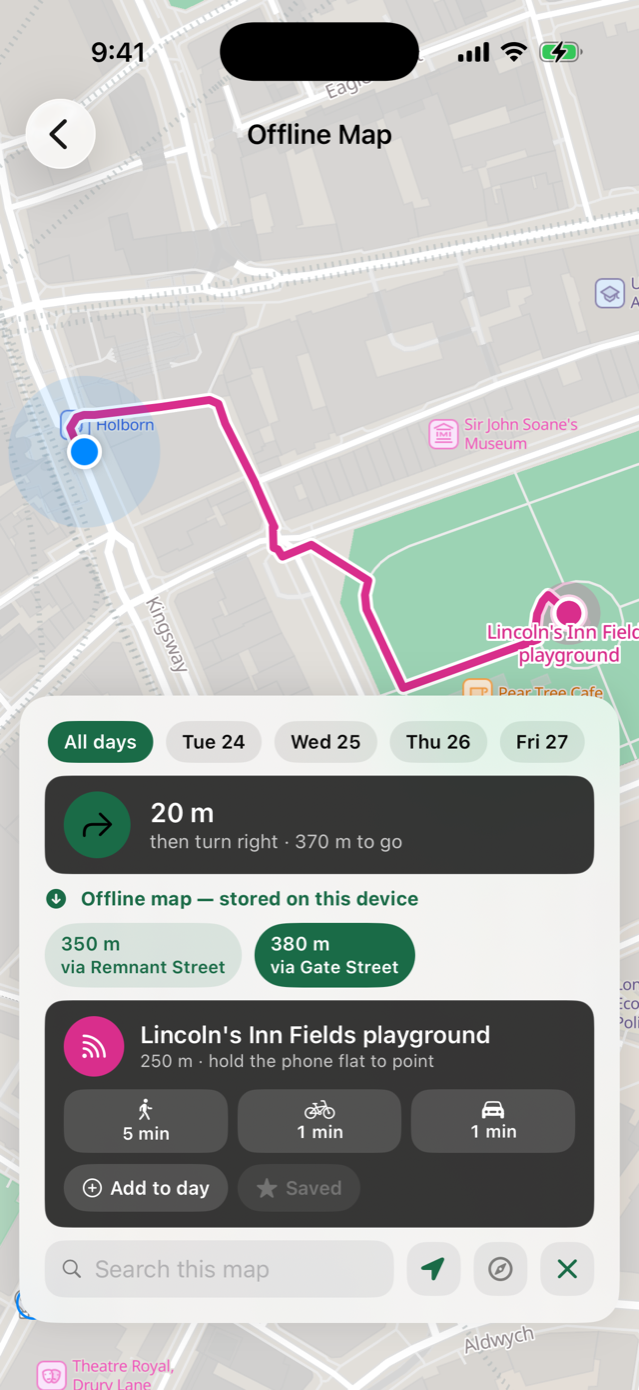
To find your way: on the offline map, tap one day along the top. A blue dot shows where you are, and an arrow with a distance points to your next stop on that day.
- 8
The arrow is a direction and a distance, not turn-by-turn — it points straight at the place, through whatever is between. Follow the walking line drawn on the map and use the arrow to check you are still going the right way. Walk within 25 m and it moves on to the next stop by itself.