 Camipack
Guide · 4 steps · 1 min
Add a trip to your calendar
Camipack 1.142iPhoneUpdated 24 Oct 2026
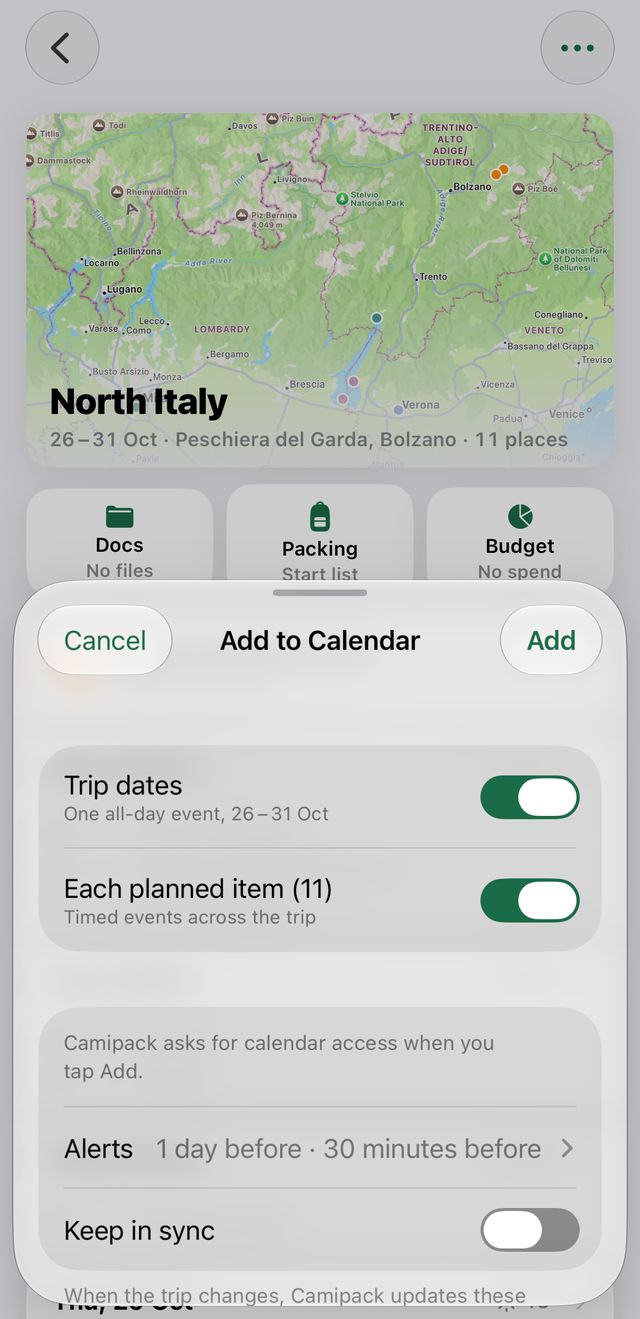
Put the trip into the calendar your family already checks: one all-day banner across the whole trip, and optionally every timed activity as its own event with an alert.
- 1
Open the trip and tap the ⋯ button in the top-right corner.
- 2
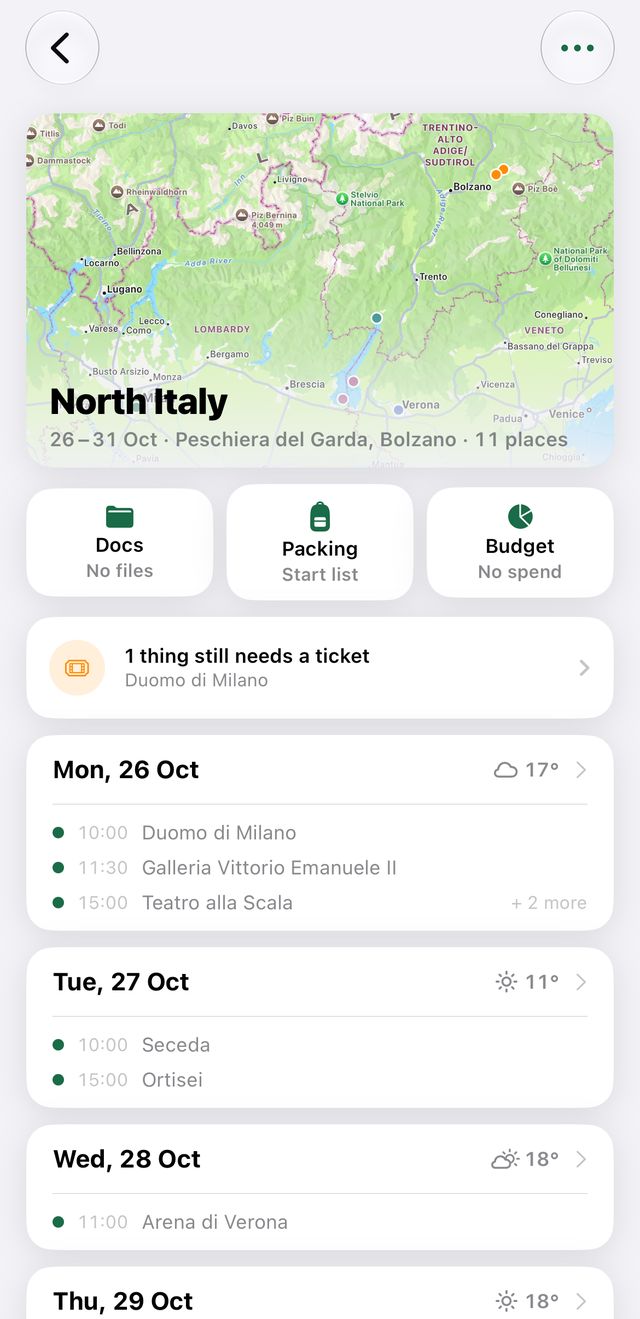
Tap “Share & Export”, then “Add to Calendar…”.
- 3
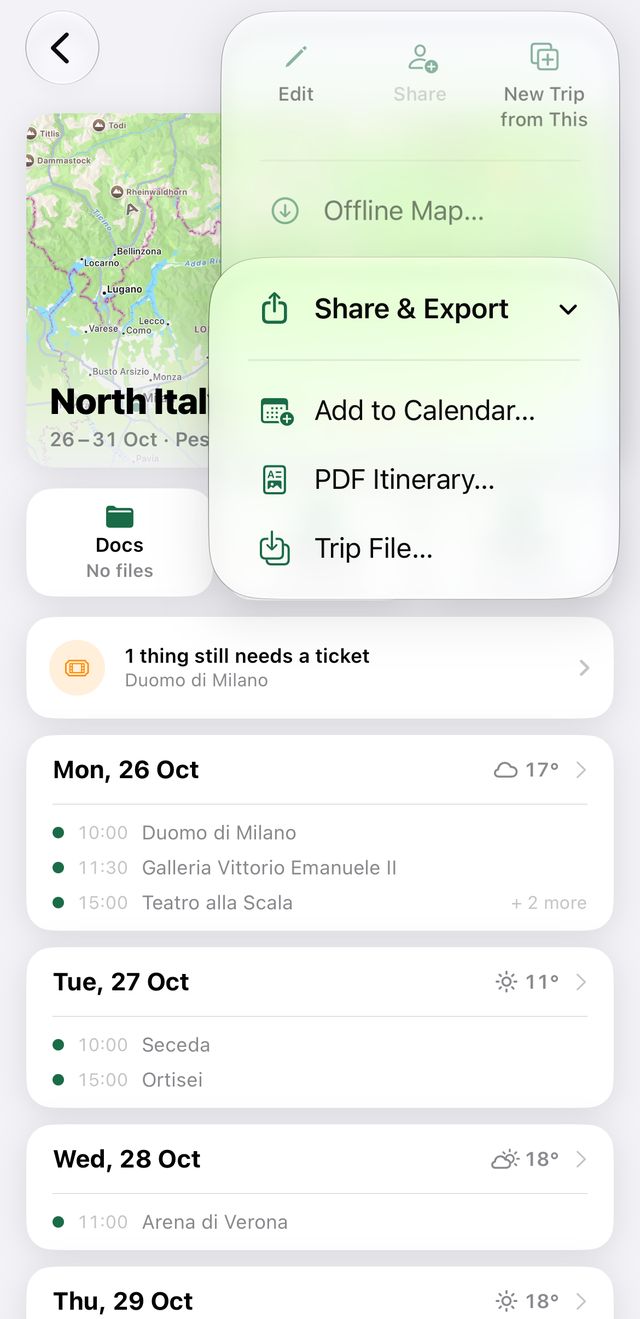
Choose what to add — the whole trip, every timed item, or both — and pick the alerts.
- 4
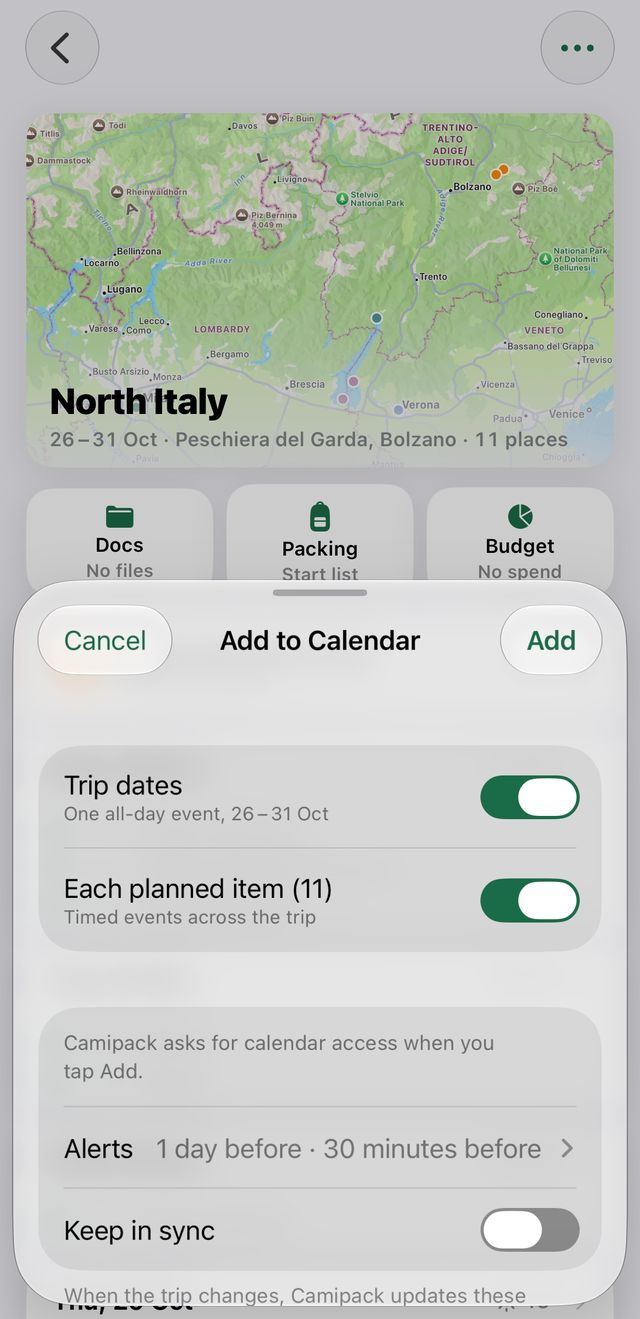
Pick the calendar and tap “Add”. Re-adding later updates the events instead of duplicating them.