 Camipack
Guide · 2 steps · 1 min
Import & export
Camipack 1.142iPhoneUpdated 24 Oct 2026
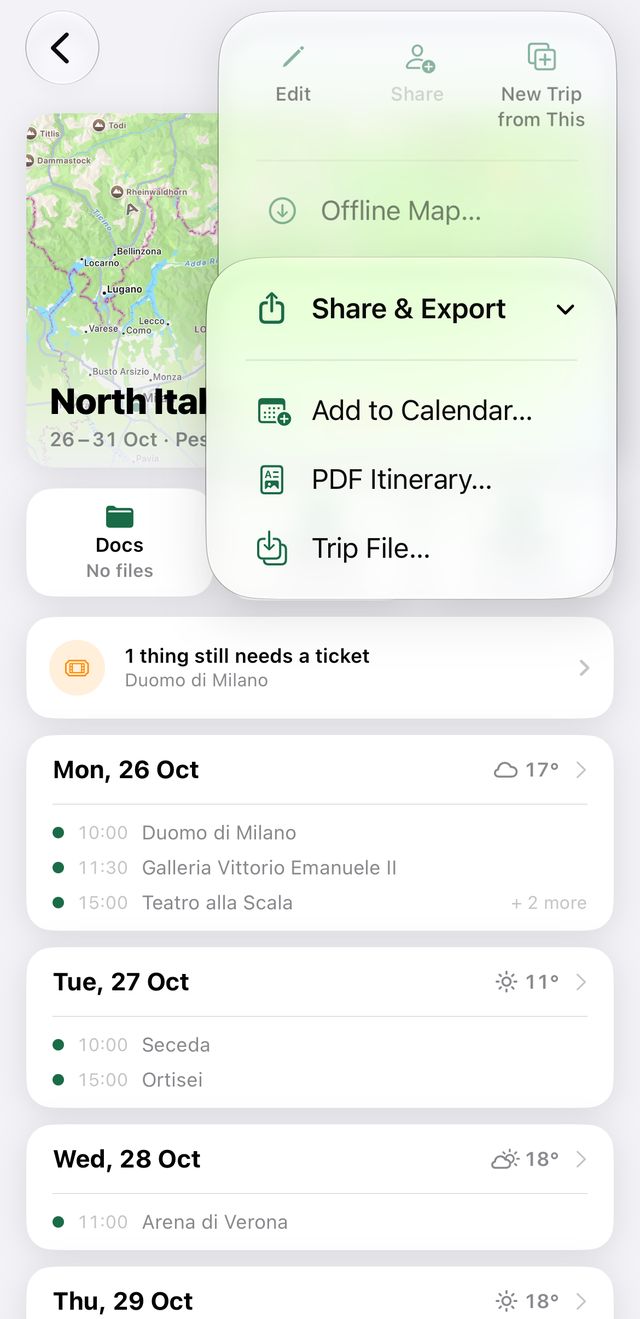
Export Trip creates a .camipack file — the whole trip with its documents, named after the trip. Send it to anyone or keep it as a backup; tapping one opens Camipack and offers to add it. An exported file is an independent copy: it does not stay in sync with the original. For live planning together, use Share Trip instead.
Open in Camipack › Download on the App Store
- 1
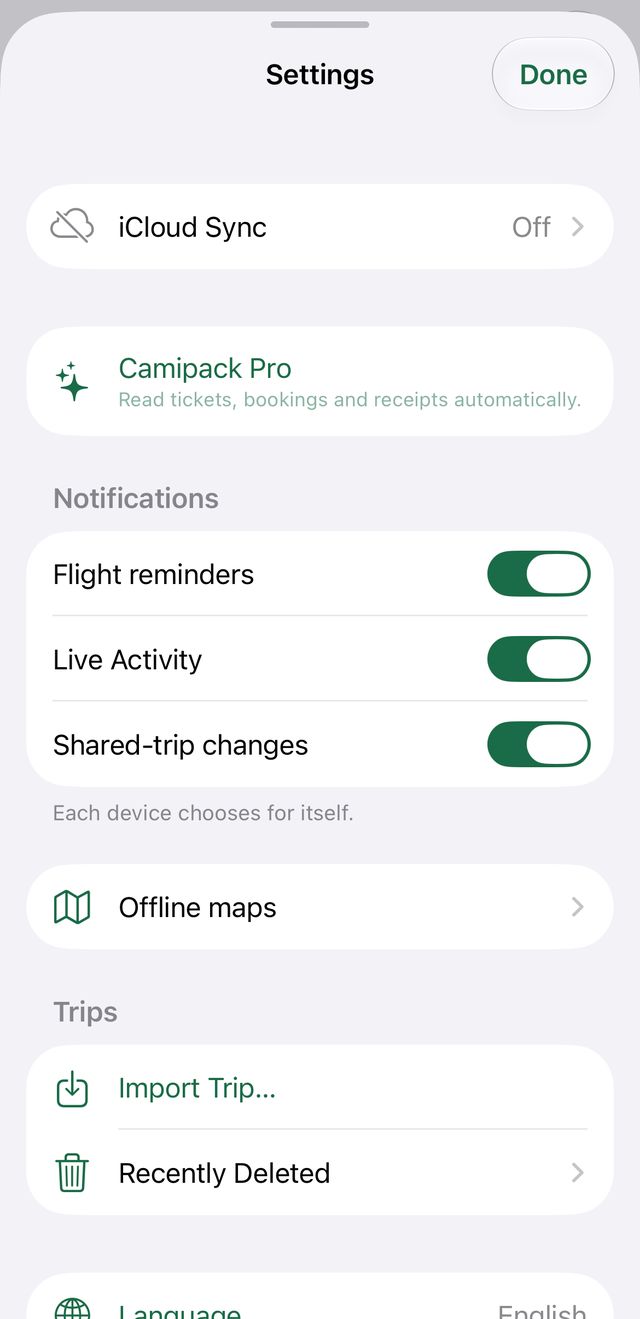
To import: tap Settings in the top-left of the home screen, then “Import Trip…”, and pick a .camipack file.
- 2
To export: open the trip, tap ⋯ top right, then “Share & Export” and “Trip File…”.